 JPY
JPY


Aloha and welcome to ShellsHawaii, everyone.
If this is your first time visiting my blog, you may notice there are many stories and posts here that you might enjoy exploring. Sometimes when you see a longer blog, it can feel like something you would love to read, but finding the quiet time to sit down and go through the whole article isn’t always easy. Because some of my blogs are a bit longer, you may find yourself thinking, “I would really enjoy reading this, but maybe I’ll come back to it later when I have more time.”
These days the internet, technology, AI, and many helpful apps on our smartphones have become wonderful tools in our daily lives. They help us stay connected, learn new things, and even run our businesses. And because of these tools, there is now a very simple way to enjoy my blogs — even when your day is busy. You can simply listen to my blogs instead of reading them.
Many smartphones today have a small feature that can read the words on the screen out loud. Once it is turned on, your phone can read an article for you almost like listening to an audiobook.
This can be very helpful when you want to enjoy a blog while you are:
• relaxing
• walking
• cooking
• driving
• or simply resting your eyes
How to Listen to My Blog on iPhone
If you are using an iPhone, there is a small feature that can read the blog out loud for you. Once you turn it on, your phone can read any article on the screen, including my blogs.
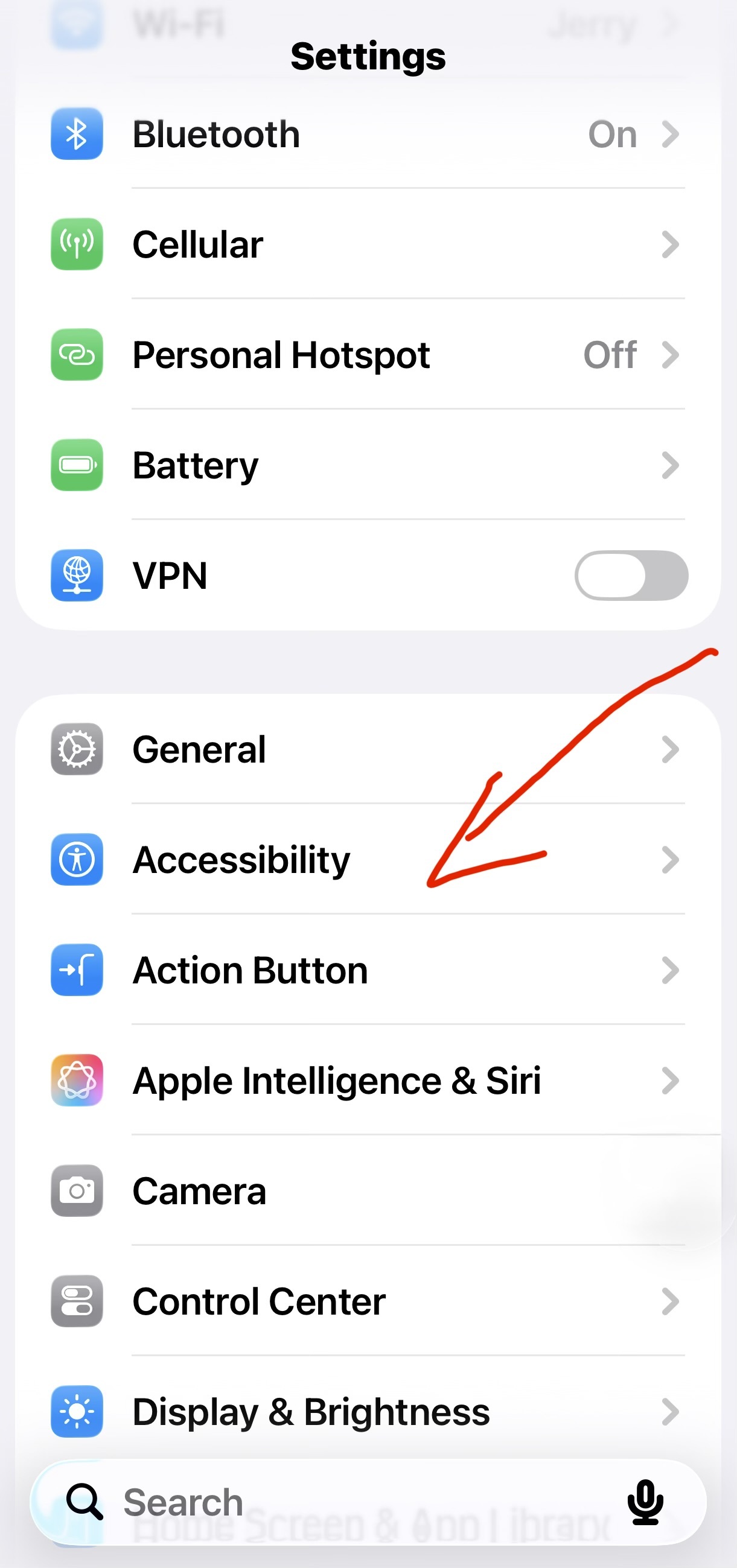
It only takes a moment to set up.
Step 1 – Open Settings
Open Settings on your iPhone.
Step 2 – Go to Accessibility
Scroll down a little and tap Accessibility.
Step 3 – Tap Read & Speak
Look for Read & Speak and tap on it.
Step 4 – Turn on Speak Screen
Turn Speak Screen to ON.
You will also see options where you can choose the voice you prefer, and even adjust the speaking speed if you would like the reading to be a little slower or faster. Personally, I use the Siri voice, because it sounds very natural to me and I’m already so familiar with her voice after all these years. But that’s just me — you can choose whichever voice you like best.
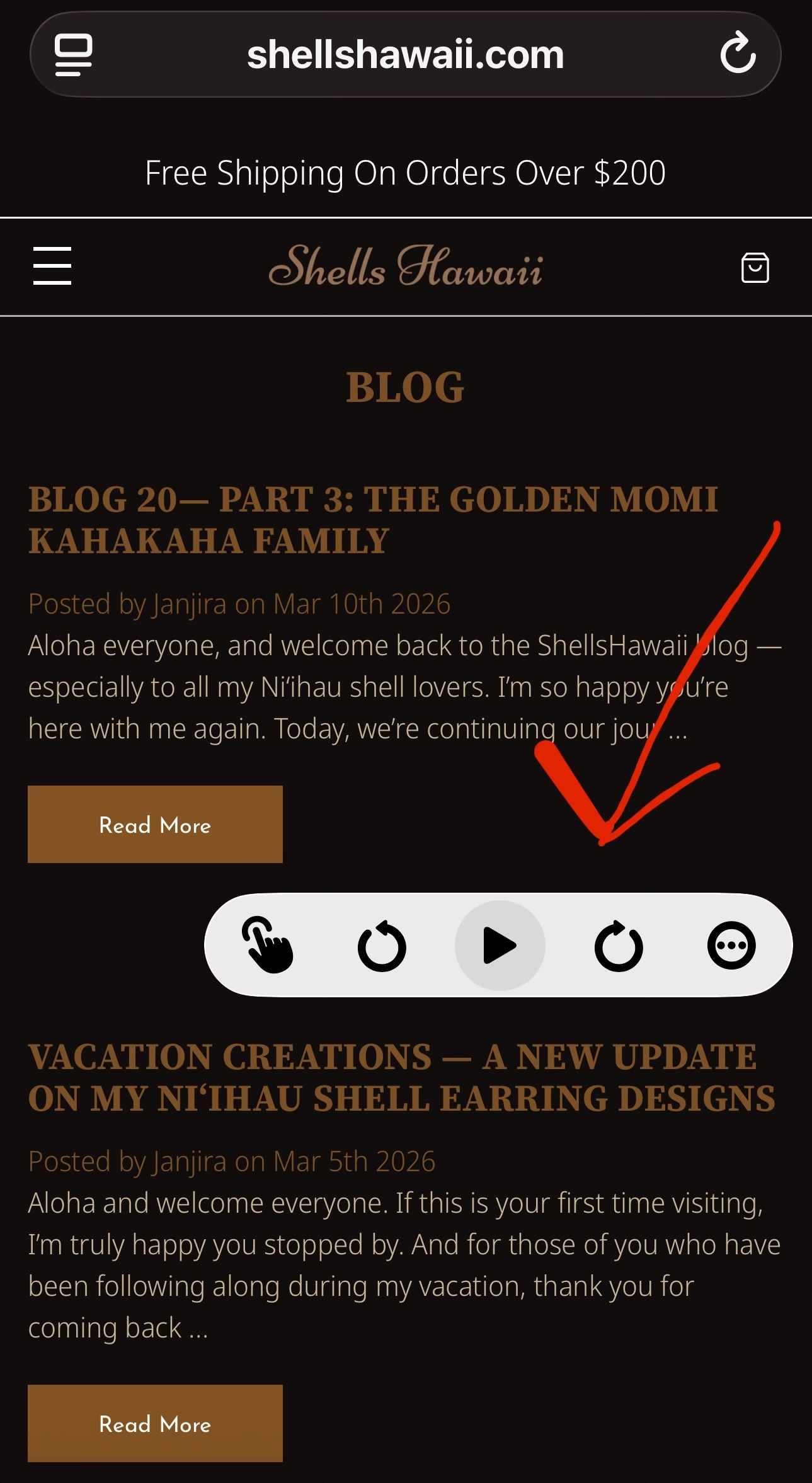
After that, open one of my ShellsHawaii blogs in Safari. Place two fingers at the top of the screen and swipe down, and your iPhone will begin reading the blog out loud for you.
You may also see a small control bar appear on the screen like the one shown in the photos below. This is the reading control. You can use it to pause, play, move forward, or go back while the phone is reading.

A Small Note When Listening to Audio
How to Fix If the Audio Control Disappears
Sometimes, after a phone update, the small control button used for audio may disappear from your screen. If that happens, don’t worry — it is usually just a small system glitch. Turning your phone off and then back on will often bring the control back.
Why You May Hear Words That Are Not Written in the Blog
If you’re listening along instead of reading, just a little note — sometimes your phone may read something called ALT text (alternative text), which is a short description I add to help explain what is shown in each photo. Because of this, you may occasionally hear something that is not written in the blog itself. And at other times, the audio may skip describing the photos completely.
When you have a moment, I always love when you can pause and take a look of photo, because the colors and details in each shell are really part of the story I’m sharing with you.
What If You Don’t Use an iPhone?
If you are using an Android phone, many devices also have a feature that can read the screen out loud.
You can usually find it by going to Settings, then Accessibility, and looking for a feature called Select to Speak or Screen Reader. Once it is turned on, your phone can read the text on the screen for you in a very similar way. Every phone may look a little different, but the feature is usually easy to find in the Accessibility settings.
I hope this little feature may help you enjoy my blogs even more. You can also use it for many other things on your phone, like listening to articles, messages, or other websites when you don’t have time to sit and read.
If you would like to explore more of my stories and blogs, you can start here:
➡️ https://shellshawaii.com/blog/
With warm aloha,
Janjira